travelscout-support
TravelScout user guide
Support · Quick start · Privacy Policy
Last updated: October 16, 2026
TravelScout is an iPhone travel concierge. It combines your travelers’ preferences, your itinerary and reservations, your meal and activity log, and the phone’s location and clock to help you decide where to eat, what to do, and when to leave.
This guide describes the current app. Screenshots use demonstration or test data, including fictional travelers and booking codes. Some show an individual part of a screen. Dates, weather, travel times, and places in the pictures are examples, not current travel advice.
Contents
- Before you begin
- Set up your household
- Find your way around
- Ask the concierge
- Choose a recommendation
- Set your energy and who is out
- Read your daily plan
- Manage your trip and reservations
- Use maps and directions
- Check the weather
- Understand leave-by reminders
- Log meals and activities
- Teach the concierge
- Edit profiles and settings
- Data, iCloud, and offline use
- Troubleshooting
Before you begin
You need an iPhone running iOS 17 or later and an installed copy of TravelScout. It has no TravelScout account or sign-in screen.
To use the concierge, you also need:
- A network connection.
- Your own Anthropic API key, with API usage enabled on its account.
- Explicit permission to share personal information with Anthropic, given during setup or in Profile → Settings → Privacy.
- Location permission for recommendations and travel estimates from where you are.
- Notification permission if you want reminders.
Create a key through the Claude Console. Anthropic’s API key instructions explain the current steps. API usage is billed separately from a Claude chat subscription; see Anthropic’s explanation.
Start with a booking: share a confirmation, screenshot, PDF, or Safari booking page to TravelScout, or use Add a booking on the no-trip screen to paste text. Review the details and the proposed trip before saving. This works in regular builds as well as developer builds. You can also ask questions without a trip or try sample data.
Set up your household
First launch walks you through eight steps. You can skip optional details and return to them in Profile.
- Who’s traveling? Add the household’s travelers and optional age bands.
- Cuisines. Rate each traveler’s preferences from 1 to 5. Leave a rating blank if you have no preference to record: blank is different from a neutral 3.
- Dislikes and allergies. Enter them separately for each traveler. Dislikes are preferences to steer around; allergies are treated as hard exclusions. Use Something else for an allergy that has no chip.
- Activities. Rate interests such as architecture, hiking, museums, food tours, and live music. Set the household’s maximum museums per day.
- Travel logistics. Enter home airports, loyalty programs, card perks, preferred transport, budget posture, lodging style, and maximum continuous walking time.
- Permissions. Allow location while using the app and notifications if you want nearby suggestions and reminders. You can change either later.
- API key and privacy. Review the personal-information disclosure and tap Allow sharing with Anthropic. Paste your API key; the app checks it before saving it to the iOS Keychain. Key entry and sharing permission are separate: skipping or saving a key does not grant permission. You can change both later in Profile → Settings.
- Done. Tap Ask me where to eat to open the Concierge tab.
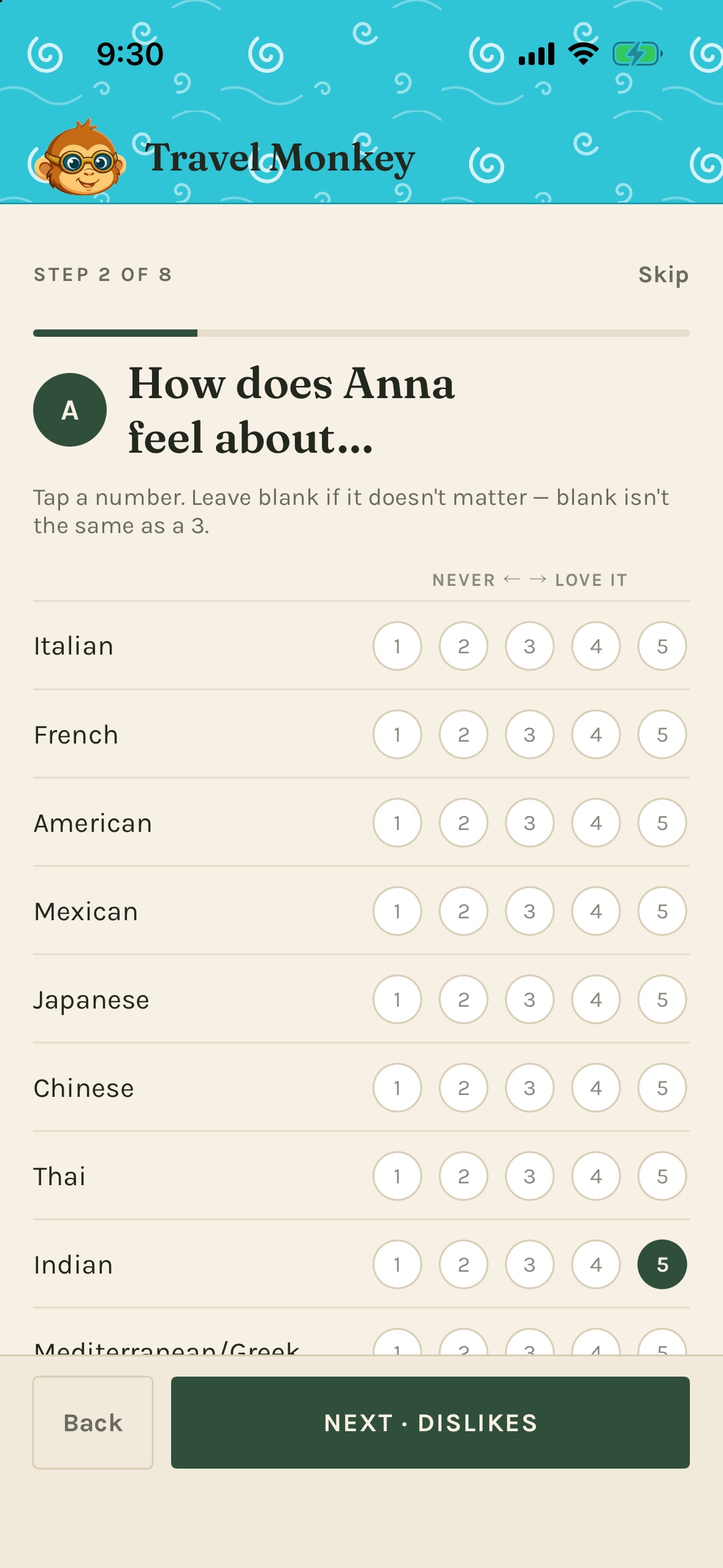
Tap only the ratings you want to record; scroll for the remaining cuisines.
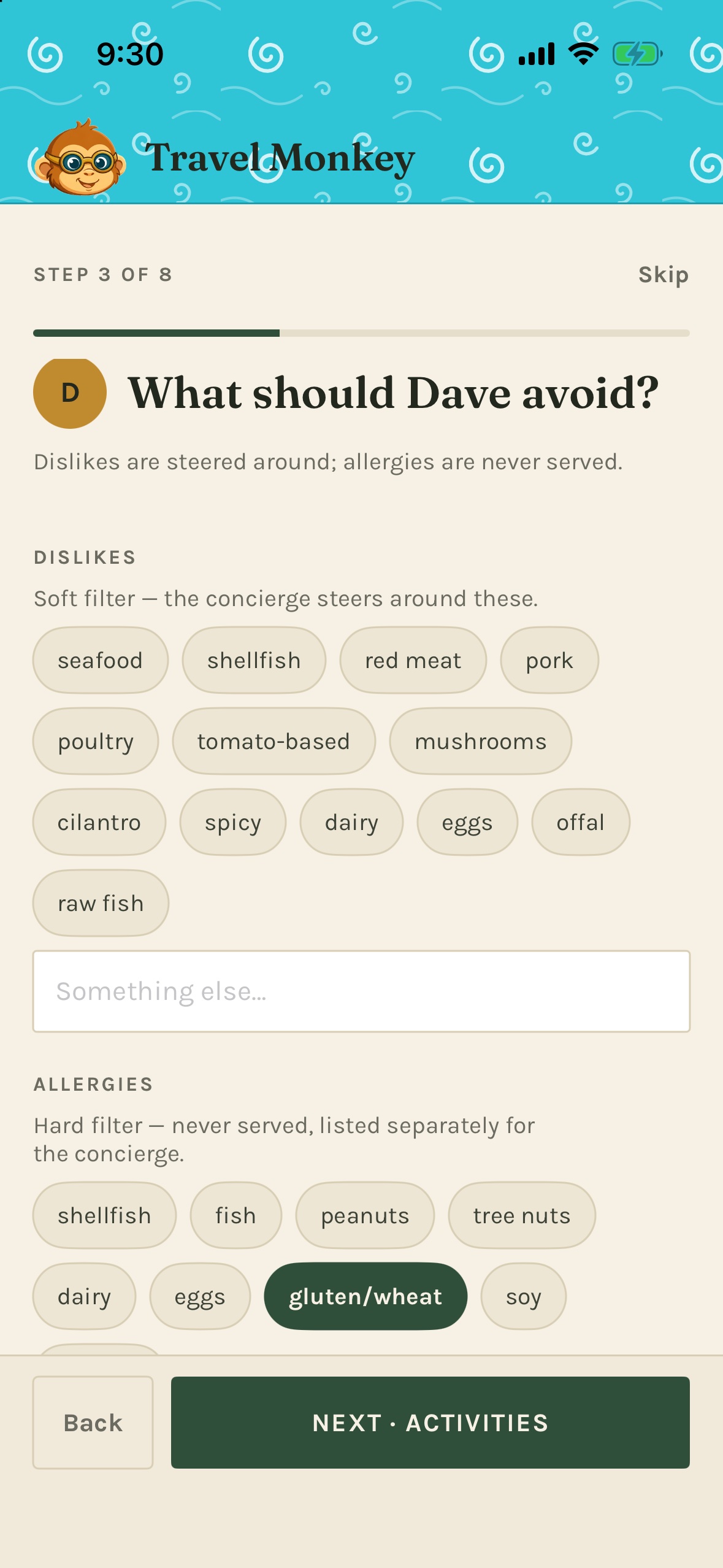
An allergy belongs in the Allergies section, including when you enter it as free text.
You can revisit the whole flow with Profile → Re-run onboarding, which starts with your existing household details. Guests have their own separate setup under Travel companions.
Find your way around
The bottom bar has four tabs:
| Tab | Use it for |
|---|---|
| Concierge | Questions, recommendations, the next deadline, current weather, energy, and conversations |
| Daily | Today’s map, timeline, lodging, and weather; arrows let you browse other days |
| Trip | The complete day list, who’s coming, reservations, and adding bookings |
| Profile | Travelers, guests, household logistics, meal and activity log, rules, and settings |
Settings and the Meal & activity log are inside Profile.
Ask the concierge
Open Concierge, type in Ask anything…, and tap the upward arrow to send. You do not normally need to retype your preferences, location, or today’s itinerary. The app supplies the context it has with each request.
If sharing permission is missing, the first send shows Allow and Not now. Read the disclosure; after Allow, send the retained question again. Not now keeps sharing off. The concierge needs both permission and a working API key.
Try questions such as:
- “Where should we eat near the hotel?”
- “What can we do before tonight’s show?”
- “Plan tomorrow around our train.”
- “We’re tired. Give us something close and easy.”
- “What is still unverified for our departure?”
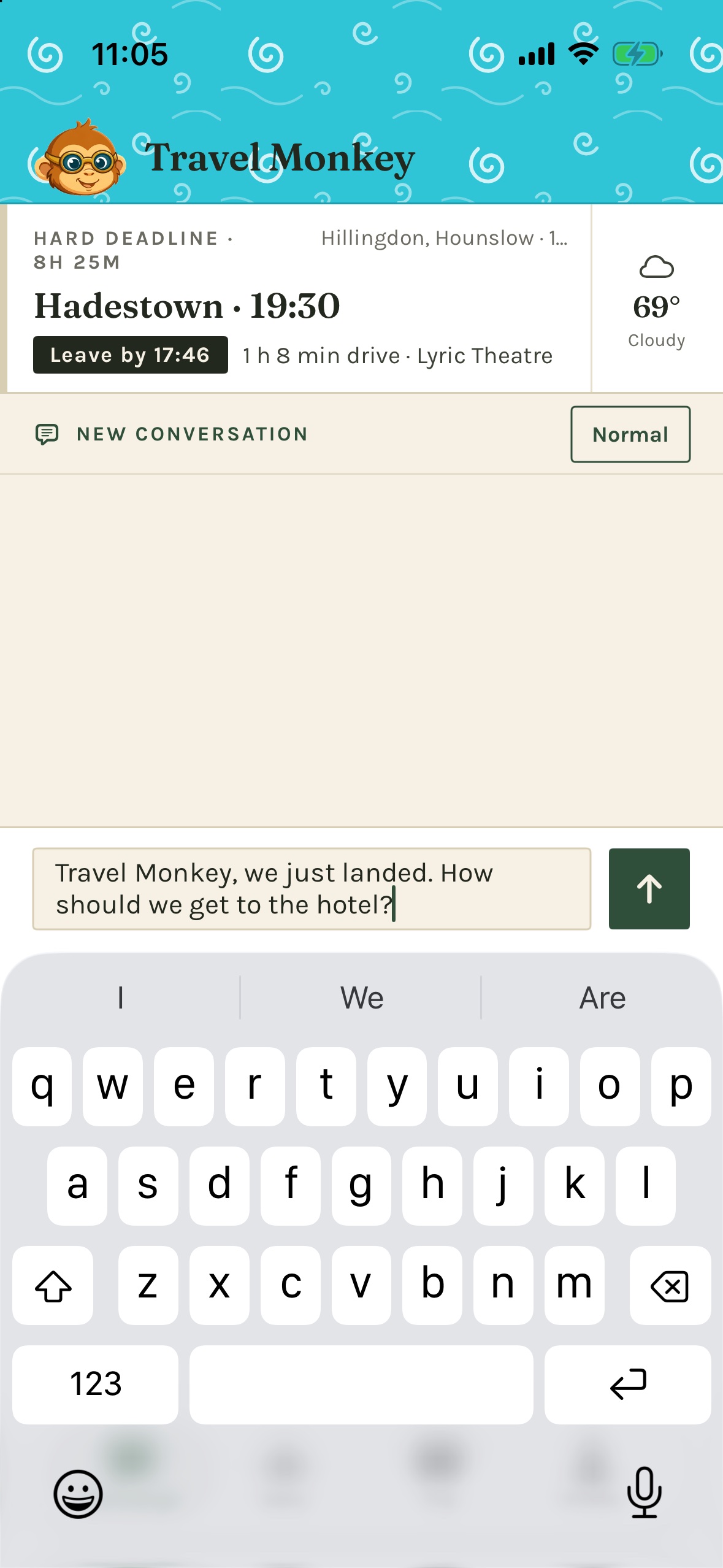
The deadline stays above the conversation. Type your question below; the arrow sends it.
The suggestion chips above the composer are shortcuts. Swipe sideways to see more. After some recommendations, they change to refinements such as Somewhere quieter. Tapping a question or refinement sends it immediately. The chips hide while the keyboard is open.
Replies arrive progressively. The turning monkey mark and messages such as Finding places nearby… or Checking travel times… indicate work in progress. Lookups can take longer than a simple answer. Wait until the reply finishes to use its recommendation controls.
Conversations
Tap the conversation label or its + control above the transcript to open its menu. Choose New conversation to start fresh, or select an earlier conversation to read it and continue. Conversations belong to the trip and are labeled with the opening question. Starting a new one keeps the old one.
What to expect
The concierge explains why a suggestion fits and what its tradeoffs are. It may say that a fact is unverified or ask for missing information. Tell it when something is wrong, and ask it to check current details when needed.
It responds when you ask; it does not watch flights, opening hours, or weather and come back later on its own. A promised or suggested check is not a scheduled reminder. For a reminder, ask for an alarm and check that the reply confirms it was set. TravelScout does not make bookings or purchases.
Choose a recommendation
A place recommendation appears as a card. The lead option is larger; alternatives may be compact. Cards can include a map, a street-level photo where available, estimated travel times, a price band, an opening-hours note, a reason, and a tradeoff.
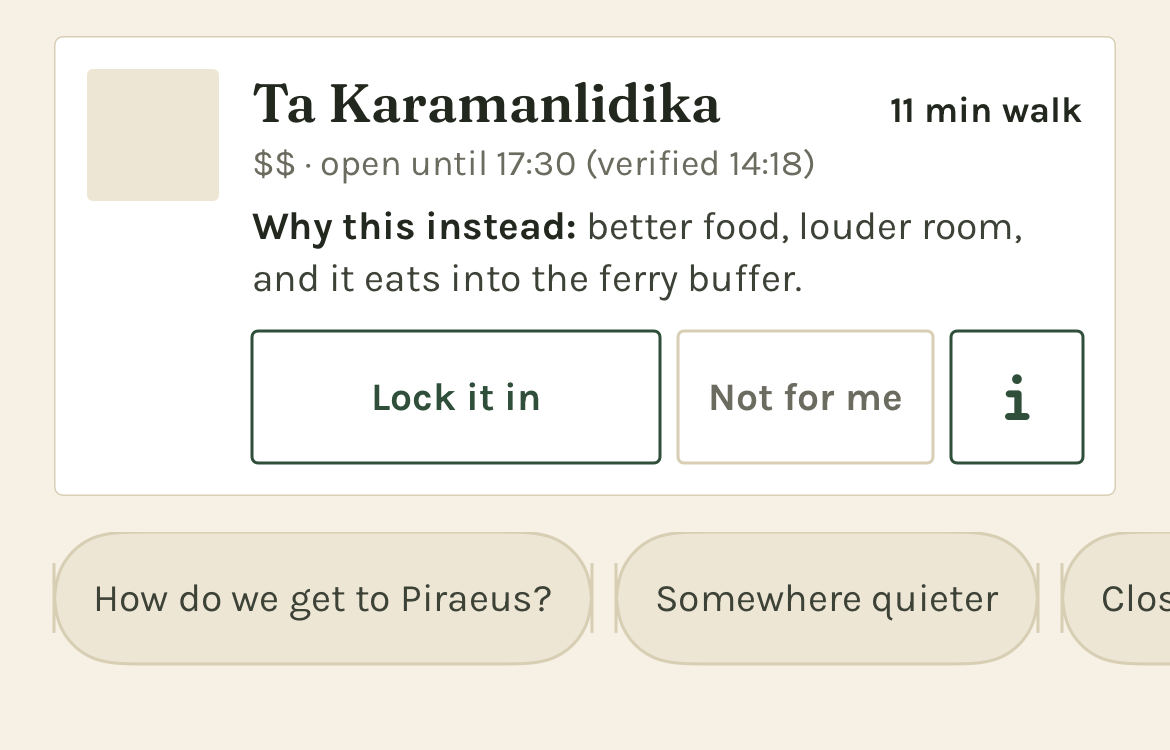
A compact card has the same choice controls as the lead card. This example shows the image placeholder rather than loaded map imagery.
| Control | What it does |
|---|---|
| Lock it in | Records your choice in the conversation and, with an active trip, adds it to today’s itinerary |
| Not for me | Declines the option and lets you give an optional reason |
| ⓘ | Expands more reasoning in place, when the recommendation has extra detail |
| Directions | Appears after locking in; opens the chosen destination in Maps |
| Log it | Appears on an unlogged locked plan once its recorded time has passed |
With an active trip, locking in records an estimated arrival time based on the current time and travel estimate, rounded up to the next five minutes. It is a choice for now, not a restaurant reservation. For a future booking, use Trip → Add from text. Without an active trip, lock-in records the decision in chat but creates no trip item or meal reminder.
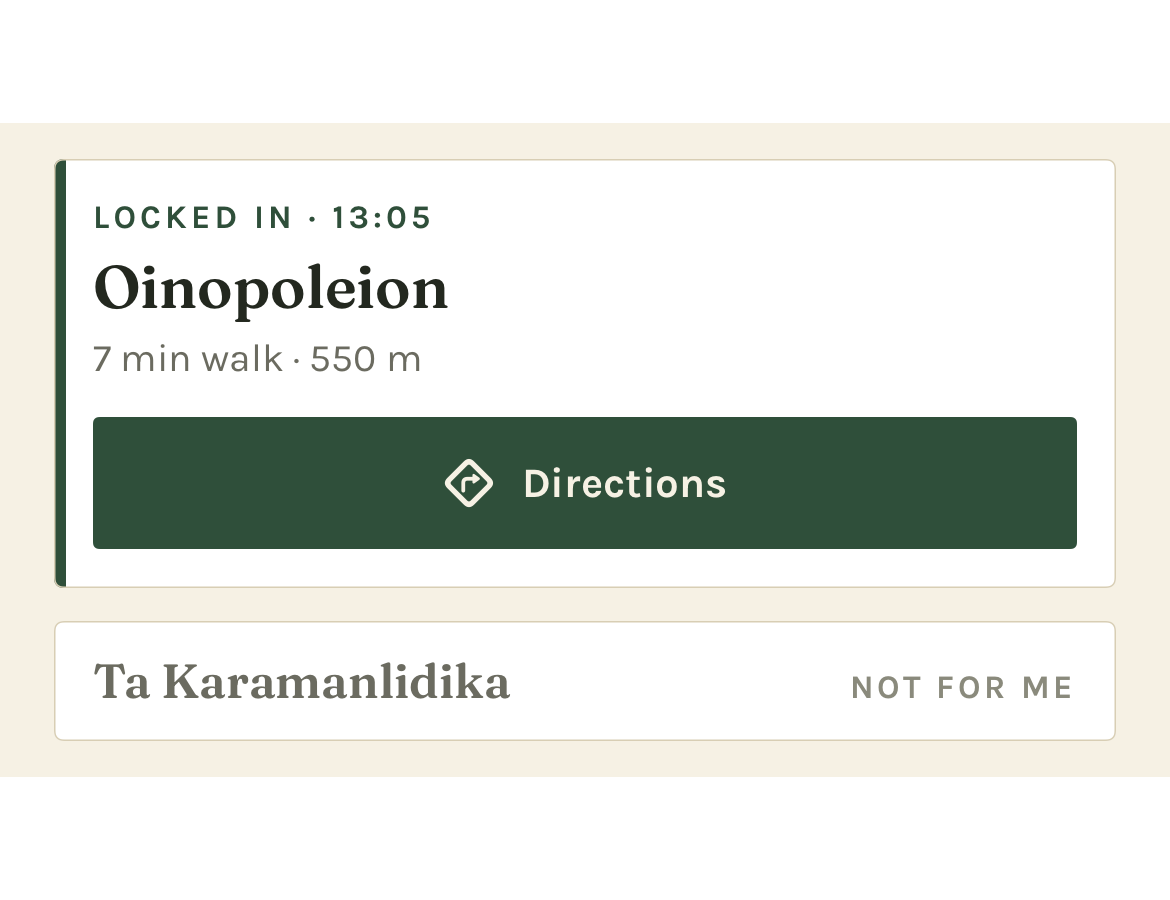
Once chosen, the card collapses to your plan and its Directions control.
Check any verification time shown beside opening hours. It describes the information used for that answer; it is not a live status feed. Also considered, when shown, explains an alternative the concierge weighed and did not choose.
Set your energy and who is out
Tap the energy pill on the right of the conversation bar. It initially says Normal. The sheet offers:
| State | What to ask for |
|---|---|
| Normal | Full days and the usual range of activities |
| Low-key today | Shorter walks, sitting down, and lower-effort options |
| Rest day | Food and hard deadlines, with no additional activity planning |
Under Who’s out right now, tap travelers to include or exclude them from this outing. Someone excluded is shown as resting. At least one traveler stays selected. The next request uses this selection for group recommendations.
This is different from Trip → Who’s coming, which records the whole trip’s roster. Today’s energy and outing selection reset at the start of a new trip day. A saved rest day is read when the Concierge next checks that day.
After repeated declines of higher-effort suggestions, the app may offer Switch to Low-key today? Choose Yes or Not now. It does not change the setting without your tap.
Read your daily plan
Open Daily for today. Before the trip it opens on the first day; after the trip, on the last. Use the left and right arrows to move between days.
A day can show its map, hourly forecast, hard-deadline callouts, timed items, work hours, untimed notes, and tonight’s lodging. Hard deadlines sit above the timeline. Untimed items appear after timed ones. Times are shown in the zone where the event happens; a city is named when needed to distinguish zones.
At the bottom, tap Mark rest day to record a lighter day, or Clear rest day to remove that mark. Marking a rest day does not delete bookings or move deadlines. If you clear the mark after Concierge has switched to Rest day, change the energy pill back yourself.
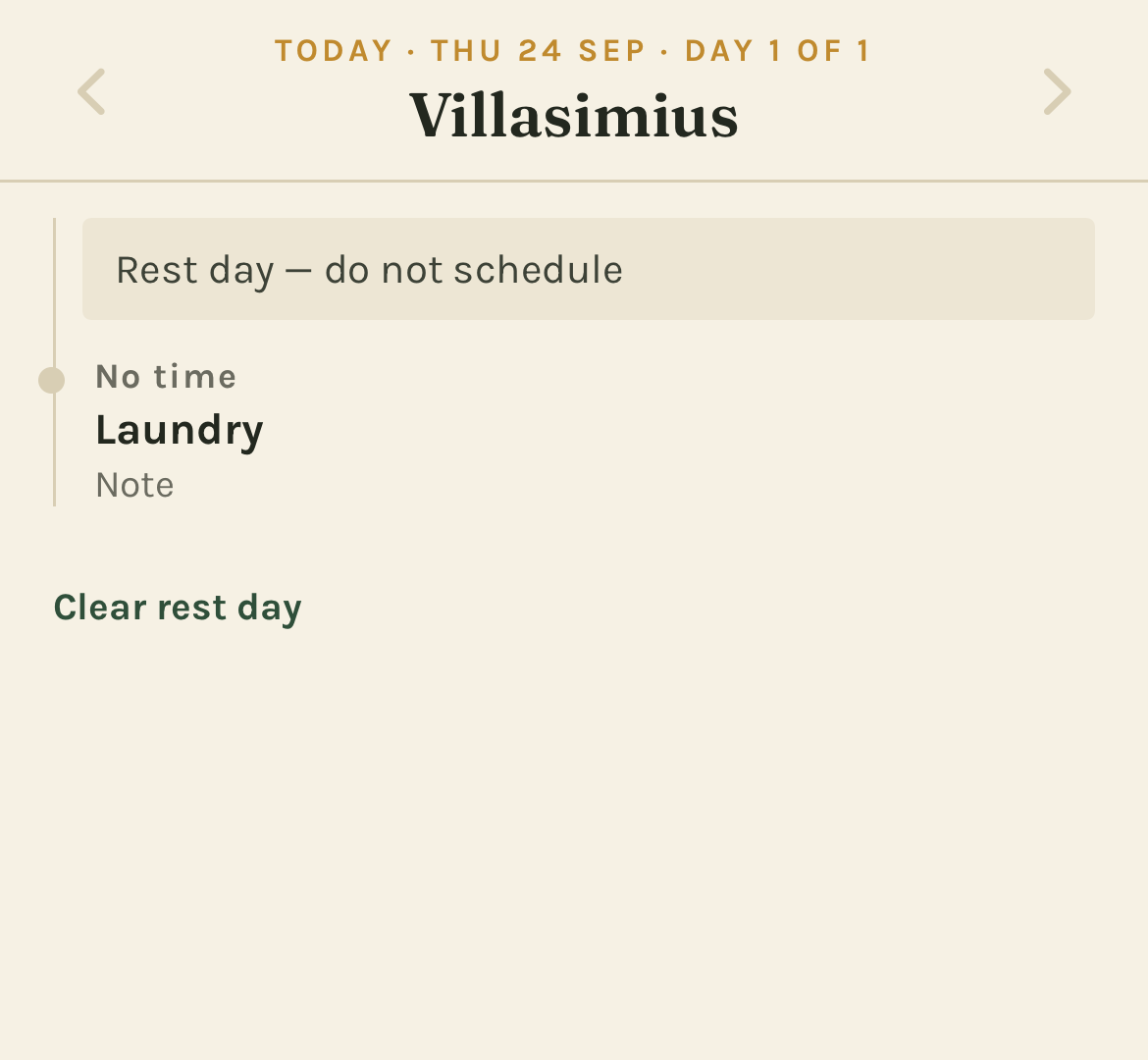
A rest day still shows your recorded plans and notes.
Manage your trip and reservations
Browse the trip
Open Trip for the complete day list. Today is highlighted. Tap a day to open its map and timeline. A hard deadline appears in a separate callout above that day’s row, with a leave-by time when one can be calculated.
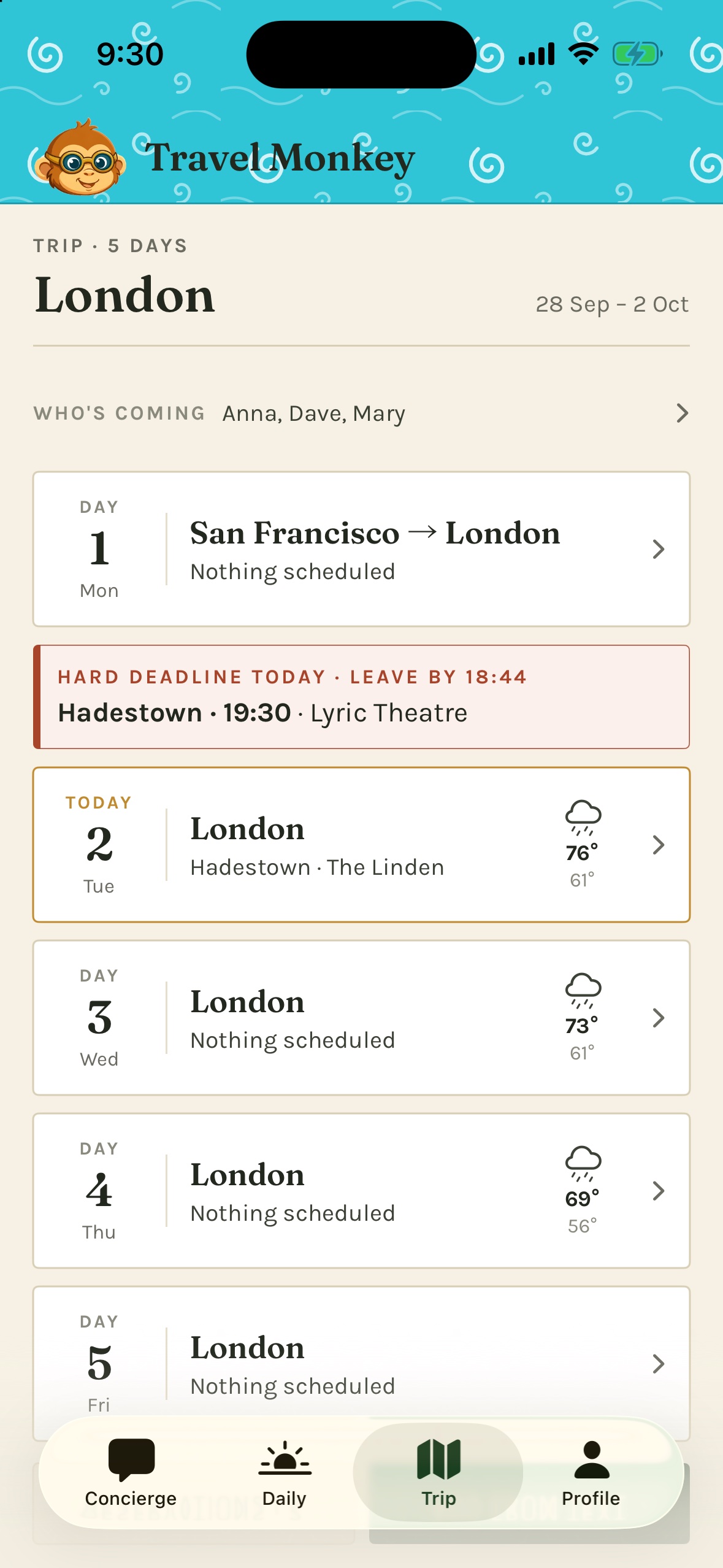
The trip’s roster is at the top; a deadline gets its own callout above the day.
Try a sample trip
Open Profile → Settings → Load sample data. The bundled sample is shifted to dates near today and becomes the active trip. You can explore Trip and Daily and ask the concierge about it.
The sample does not move your phone’s location. At home, ask explicitly about the sample city or hotel. Nearby suggestions otherwise use your actual location. Sample plans can schedule real local reminders on your phone.
Reload sample data moves its dates near today again and keeps its conversations and logs. Remove sample data asks for confirmation, then deletes the sample trip and its conversations and logs. Your own trips remain; the app selects the appropriate current or upcoming trip again.
If loading reports missing seed data, ask the developer for a build that includes the sample. Do not treat the sample’s reservations as your own bookings.
Start a trip or add a booking
You can create your first trip from a booking, or add one to an existing trip. A confirmation email, screenshot or photo, PDF, or Safari booking page can be read.
Share from another app:
- Open the confirmation in Mail, Photos, Files, or Safari. Share its text, image, PDF, or page to TravelScout. If Mail cannot share the message, copy its text and use the paste route below.
- Wait for Sent to TravelScout, then open TravelScout yourself. The share sheet saves the material on your phone; it does not open the app or read it with the concierge.
- When the app opens with a connection, sharing permission, and a working API key, it reads waiting bookings. This uses the API before you choose whether to save.
- Tap Review on the bookings banner to open a Shared booking. Review each waiting booking in turn.
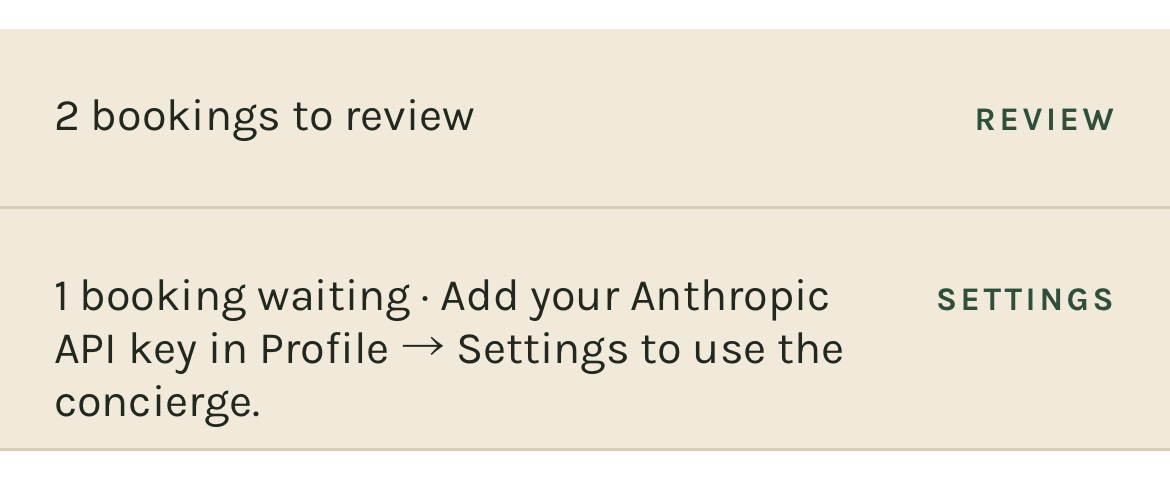
The banner shows bookings waiting on this phone and how to continue.
Paste inside TravelScout:
- With no trip, open Trip or Daily and tap Add a booking. With a trip, open Trip → Add from text.
- Paste the confirmation, booking details, or notes and tap Read it. Reading requires a connection, personal-information sharing permission, and your API key.
- Check the proposed dates, times, provider, confirmation code, and hard deadlines.
Choose where it goes:
The app asks Add to [trip name]? if the dates match an existing trip, or Start a new trip, [trip name]? if they do not. Tap Yes to save to that trip. Tap No to choose a different trip that has not ended, or New trip. You can edit the new trip’s name there, then tap Save. Everything from one share goes to one trip.
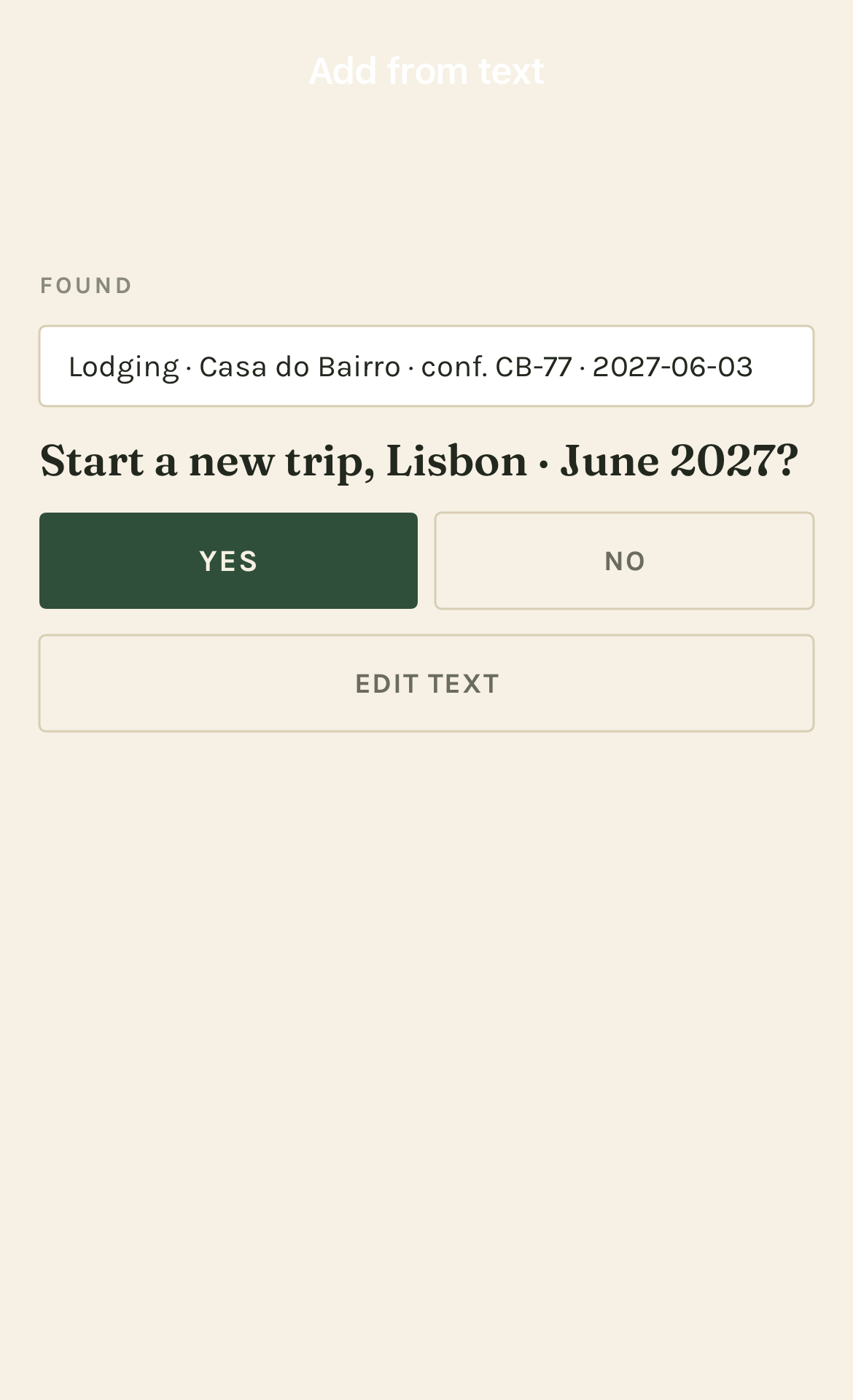
Yes saves the proposal. No lets you choose a trip or edit the new trip’s name.
For pasted text, Edit text returns to the input and Cancel closes without saving. For a shared booking, Discard deletes it from the inbox without adding anything; Cancel keeps it waiting for later. During a save, wait for it to finish: save, discard, cancel, and swipe-down dismissal are disabled.
Saving can extend an existing trip’s dates and fill the intervening days. A lodging booking can fill tonight’s lodging across its stay. The app then selects the current trip, or the next upcoming one; a later trip you just added may not be the active trip. Check Daily and Reservations after saving. There is no general editor for every stored booking field, so check the proposal carefully before Yes or Save. Sharing the same booking twice can add it twice; there is no duplicate warning yet.
Include the year in dates when it matters. A date without a year is interpreted as its next occurrence on or after today. If nothing dated can be read, use Add manually. For a PDF the share sheet refuses as Too large to read, try a smaller PDF, a screenshot of the relevant details, or pasted text.
Add manually
Use Add manually from the paste sheet or a failed reading if you want to enter an item yourself or are offline. Choose the Trip, or New trip with a name and date; for an existing trip, choose its day. Enter a title, kind, optional time, and place. Mark Hard deadline — can’t be missed when appropriate. The form also has an optional confirmation code, an International flight switch for flights, and Border check before boarding, like the Eurostar for trains. Those distinctions affect arrival buffers. Tap Save. Manual entry does not need an API key or sharing permission.
Developer import
Developer builds also offer Import trip data on the no-trip screen and Profile → Settings → Developer → Import from markdown for prepared trip documents. Arrange the files with the developer and review the preview before confirming. Regular builds use shared or pasted bookings; a developer import is optional.
Read reservations and store a departure terminal
From Trip, open Reservations. Use the kind filters to narrow the list. Cards show dates, routes, large confirmation codes, and seats where recorded. Expand Original text when present to reread the source. Codes can be selected and copied.
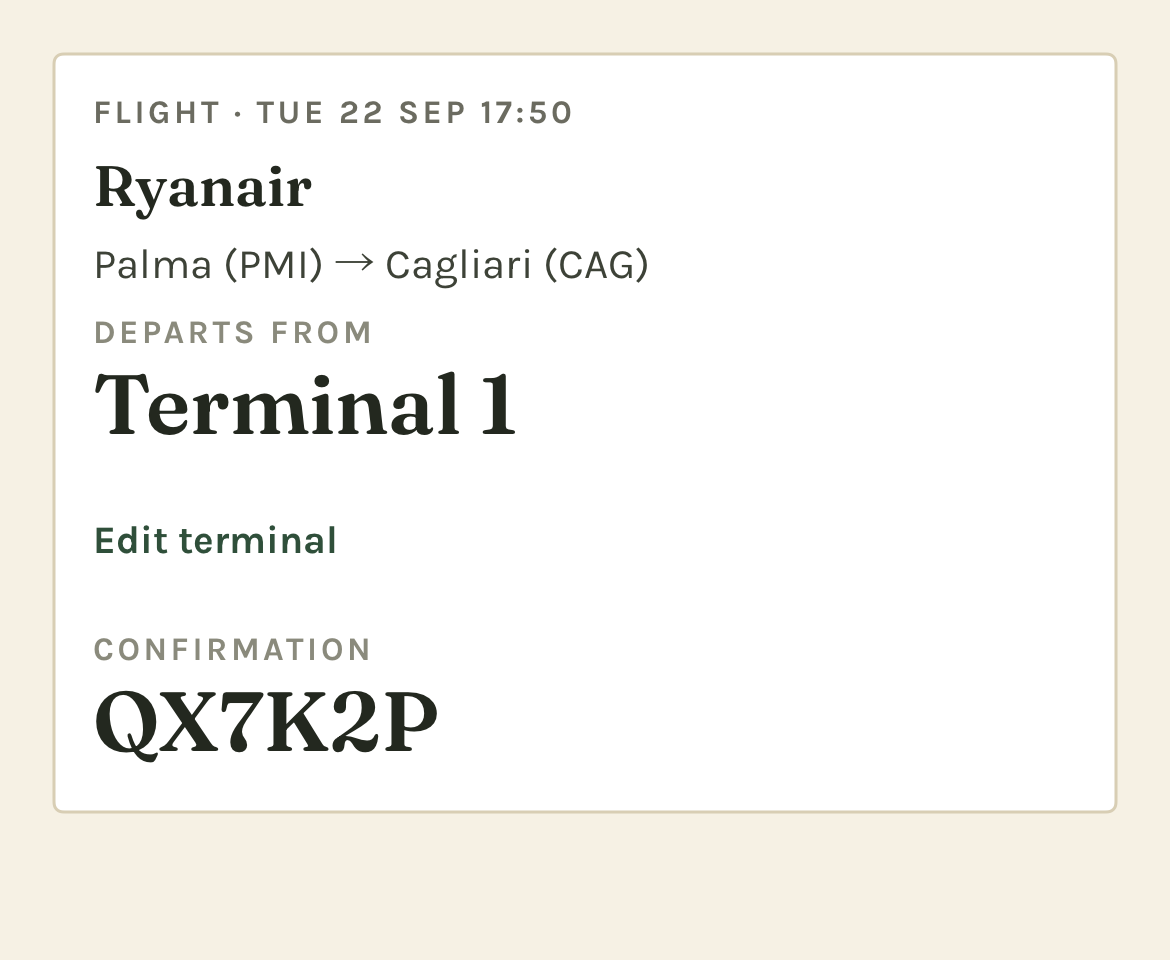
The departure terminal and confirmation code are easy to read at the airport.
On a flight, tap Add departure terminal or Edit terminal, enter the value, and save. Saving an empty value clears it. A stored terminal also appears with the flight in Daily, deadline callouts, and reminders.
You can also ask the concierge to look up a missing terminal. If it offers to save one, review the source and tap Save or Not now. It needs your tap to store the change. Terminals are stored information; gates and travel status are not monitored live.
Use maps and directions
Day maps show located items and lodging, with legs between consecutive timed places. Long intercity legs may be dashed straight lines. The map is an overview; navigation opens in a separate Maps app.
On a locked recommendation, tap Directions for Apple Maps. Long-press it to choose Google Maps if installed. The destination and travel mode are passed to that app.
On recommendation maps, green marks the destination and brass marks the location used for the estimate. When the estimate is from lodging, the origin is shown as a house. Without a usable location, distances may be from lodging; check the label.
A no map badge means the item saved but its place could not be located. It does not mean the booking is missing. For an itinerary item, use Find map pin if it has no pin, or Fix map pin if the saved pin is wrong, and review the confirmation before retrying the lookup.
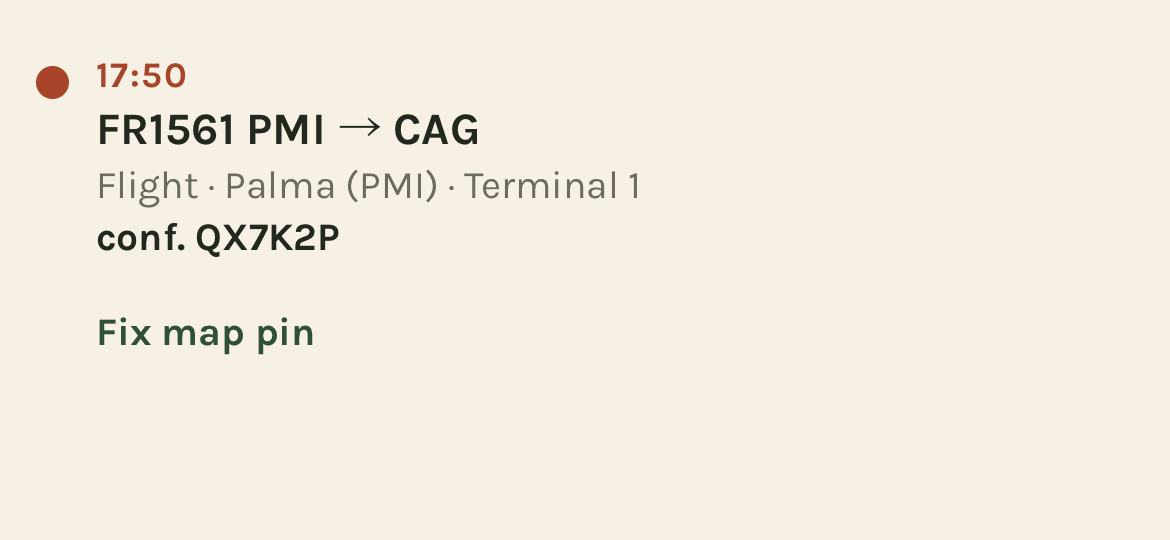
Repair the selected place from its item in Daily or a Trip day.
A repair affects other items and reservations using that same place. It can change travel estimates and leave-by times. If the lookup still fails, the item stays readable without a map pin.
Check the weather
Weather appears in three places when a forecast is available:
- Concierge: current conditions beside the next deadline.
- Trip: a forecast icon and high/low for each day within the forecast range.
- Daily: hourly conditions and weather beside timed items.
Tap the weather chip on Concierge to open the report: current conditions, the next six hours, sunset, UV, wind, rain chance, and a three-day outlook. It can also include a concierge-written explanation of what the forecast means for today’s plan. That explanation uses the API and can incur usage charges.
Tap Ask about it to send “How should today’s weather change our plans?” to the concierge, or Done to close the report.
A cached forecast may show its age. With location unavailable, the current-weather chip may be absent while trip-day forecasts still work from itinerary locations. A missing icon can mean no forecast, an unavailable service, or a date too far ahead.
Understand leave-by reminders
The strip at the top of Concierge shows the next hard deadline and its leave-by time. Tap the deadline to find it in Trip. It turns red when the leave-by is within three hours. A flight’s terminal appears when stored.
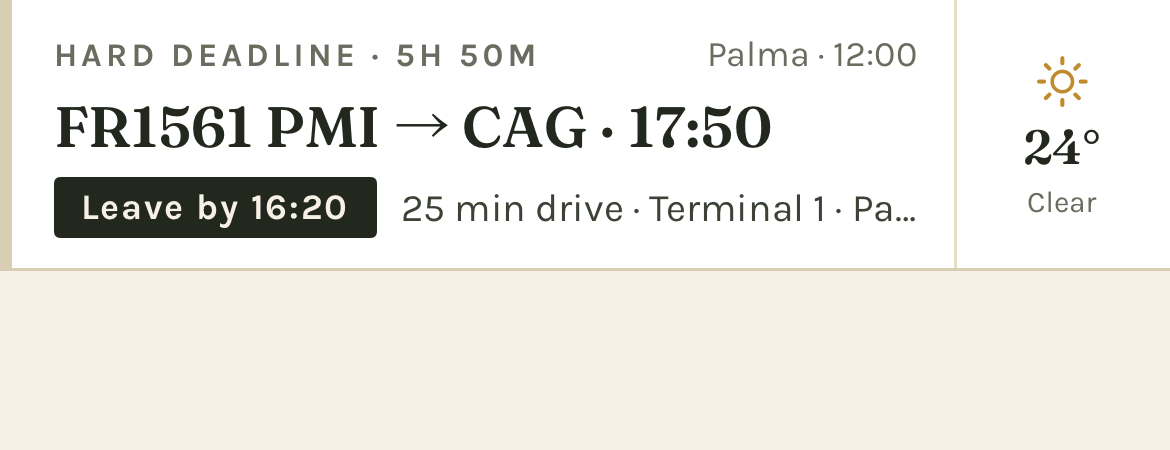
The event time and leave-by time are different: leave-by is when to start moving.
Leave-by allows for estimated travel, a 20-minute transition buffer, and the item’s arrival buffer. The current defaults are 45 minutes for domestic flights and ordinary trains, 60 for international flights, 90 for trains with border checks before boarding, and 15 for other items. The app uses your transport preference, switching away from long walks when another mode can be routed.
These are the app’s planning allowances. If a booking or carrier requires earlier arrival, use that requirement and ask the concierge for an earlier alarm. ETA unknown means the displayed leave-by lacks a usable travel estimate.
Which reminders you receive
| Reminder | Behavior |
|---|---|
| Departure | Normally one heads-up an hour before leave-by and one at leave-by; past steps are skipped |
| Connection | A flight or train connection with four hours or less on the ground gets one boarding note instead of the two departure alarms |
| An alarm you ask for | The concierge can set an alarm for a chosen plan or a time you request; check its confirmation |
| Still here | Optional warning 15 minutes before leave-by if you have not left the monitored departure area |
| Log it later | A meal reminder about two hours after a locked-in meal’s recorded time; not during 21:30–08:00 local quiet hours |
| Rest day | An 08:00 nudge on day 4 of a stretch without a rest day, then day 7, 10, and so on |
The optional Still here warning requires Profile → Settings → Warn me if I haven’t left, plus Always location permission. Ordinary recommendations and travel estimates work with While Using the App.
Expand a notification to see its available actions: Snooze 10 for a leave-by alarm, Open directions for a still-here warning, verdicts for a meal log, or Mark rest day for a rest-day nudge. Marking rest day changes the day flag, not its reservations.
Reminders are local and are scheduled up to seven days ahead. Open the app regularly and after changes to refresh upcoming reminders. An automatic trip deadline can be scheduled as it enters that window; an alarm requested in chat for more than seven days away is not saved for later. Ask again within seven days.
With notifications off, deadline information remains visible but no alarm is set. Overlapping reminders may be combined, and limited notification capacity gives leave-by alarms priority. Reminders do not track delays or schedule changes from a carrier.
Log meals and activities
Record what worked so later suggestions can use it. Open the quick log by:
- Tapping Log it on a locked card once its time has passed.
- Tapping a meal reminder, or expanding it and choosing a verdict directly.
- Tapping a Log [place] suggestion chip when it appears.
- Asking the concierge, for example, “Log lunch: we loved the curry, but the room was too loud.” It opens a draft for you to review and save.
In the quick log, check who was there, choose Loved it, Fine, or Not again, then tap Save to log. You can add a short preference note, a meal’s cuisine, and dishes. The note is most useful when it says what to repeat or avoid next time. Later closes a new draft without saving it.
Open Profile → Meal & activity log to browse entries grouped by trip, newest first. Filter by Meals, Activities, or Hotels, then by verdict or traveler. Tap an entry to edit and choose Save changes. The log has no delete control.
Teach the concierge
Keep a correction
If an answer is wrong, say exactly what should change. The concierge can offer Keep this correction? with a proposed line. Tap Save to include it in future conversations and trips, or Not now to leave it out of lasting memory.
Review kept corrections under Profile → Rules → Your corrections. Remove, with confirmation, stops including that line in future requests. The bundled rules below are read-only and show their version.
Consolidate a trip’s log
From Profile → Meal & activity log, find the trip and tap Consolidate this trip. On the next screen, tap Consolidate this trip to run the review. It needs entries, a connection, sharing permission, and your API key; you can do it during or after the trip.
The concierge proposes profile changes with their supporting log entries. Review each and choose Accept or Reject. Accepted changes affect subsequent requests. Allergy changes require an additional confirmation. Nothing changes just because the model proposed it.
Recent log entries already help the concierge before consolidation. Consolidation is how you turn those experiences into lasting profile preferences.
Edit profiles and settings
Travelers and guests
Under Profile, tap a traveler to edit cuisines, activities, dislikes, allergies, dietary rules, and notes, then Save. An allergy change asks for confirmation. Add traveler adds a household member. The last household traveler cannot be removed. Removing someone who has logs preserves those entries.
Use Add a companion for a guest joining some trips. Their setup covers name, cuisines, dislikes and allergies, and activities. Then open Trip → Who’s coming to include them in that trip’s roster. A guest’s full profile is used on trips they join. You can also record free-text companions who have no profile, but their names alone do not supply dietary preferences or allergies.
Household logistics
Tap the Logistics card in Profile to change shared transport, budget, lodging, walking limits, airports, loyalty programs, and perks. Changes save as you edit.
Settings
| Setting | Use it for |
|---|---|
| Anthropic API key | Add, replace, or Remove key; the app validates it and shows only its last four characters. Removal also withdraws sharing permission |
| Provider / Model / Effort | Choose from the available models and effort levels; Model default uses the model’s default effort |
| Leave-by reminders | Enable the optional still-here warning |
| Permissions | Check location and notification status; Change in iOS Settings opens the phone’s settings |
| iCloud → Sync | See whether your private iCloud account is available |
| Sample data | Load, reload, or remove the sample trip |
| Privacy | Review what is sent to Anthropic, Allow sharing with Anthropic, or Withdraw permission to stop future requests |
| Developer | Import prepared markdown trip data, in developer builds only |
Higher effort can take longer and cost more. The model choice applies to questions, imports, and summaries. Use the in-app recommendation as a starting point and review actual usage in your Claude Console; costs vary with conversation length and lookups.
Profile → Reset memory asks you to confirm deletion of every conversation for the active trip. It keeps itinerary, reservations, logs, and saved corrections. Starting a new conversation is the option to use when you want a fresh chat without deleting old ones.
Data, iCloud, and offline use
Profiles, trips, reservations, logs, and conversations are stored on the phone. If iCloud is available, they sync to your own private iCloud account. The current app does not share a household between different Apple Accounts; each person’s phone has its own copy unless it uses the same account.
Your API key stays in the iOS Keychain. With your permission, concierge questions, pasted or shared booking reading, consolidation, log summaries, and the weather report’s written explanation send relevant information to Anthropic. Shared text, screenshots, and PDFs are included when being read. Maps and weather use Apple services. Read the Privacy Policy for the full details.
Sharing permission is separate on each phone. Because shared screenshots and documents are now included in the disclosure, an earlier permission is requested again after this update. Use Profile → Settings → Privacy → Allow sharing with Anthropic to resume AI features. Withdraw permission stops future personal-information requests. Remove key also withdraws permission; adding another key does not restore it. Neither action recalls requests already sent or revokes the key in your Anthropic account.
The shared-booking inbox stays on the receiving phone and does not sync through iCloud. Its files remain until saved or discarded. Shared images and PDFs are sent for reading, but are not saved as conversation attachments or synced with your trip.
Offline, you can read saved trip details, reservations, logs, and conversations, and use manual item entry. Concierge questions and pasted-text parsing require a connection. New maps, travel estimates, and forecasts may be unavailable; previously scheduled local notifications can still fire.
Troubleshooting
| Problem | What to check |
|---|---|
| No trip yet | Share a confirmation, or tap Add a booking and paste one; review it to start a trip. Add manually also works. Chat and sample data are available without your own trip. |
| Bookings waiting | Open the banner. If it shows Settings, allow sharing in Privacy and add a working key. If offline, reconnect and reopen the app. Cancel keeps a shared booking waiting; Discard removes it. |
| Sharing permission requested again | Review the expanded disclosure including shared screenshots and documents, then choose Allow. A saved key does not grant permission. |
| The wrong trip is proposed | Tap No, choose another trip or New trip, check its name, then Save. Include explicit years in the source dates. |
| Nothing found in a booking | Check that the source includes readable dates and details; use Edit text or Add manually. Try a smaller PDF or screenshot if the share was refused. |
| Sample data will not load | If the error says seed data is missing, the developer needs to provide a build with the sample file. |
| Missing or invalid API key | Open Profile → Settings and enter a working key. Check its API account, expiration, and billing in the Claude Console. |
| The concierge is unavailable | Check your connection and the displayed error. If the service is busy, try again later. |
| The reply is taking time | A question with several searches can take a minute or more. Look for the progress indicator or lookup message. |
| Recommendations are in the wrong city | Check location permission, who is out, and the active trip. With sample data, name the city explicitly; your phone is still where you are. |
| Wrong or missing map pin | Use Fix map pin or Find map pin on the item’s day, then check its position and leave-by time again. |
| ETA unknown | A route or usable origin is missing. The time may include buffers without travel; plan the journey yourself or ask the concierge for help. |
| No current-weather chip | Check location access. Forecasts may also be unavailable or outside their range; absent weather does not remove the trip. |
| No reminders | Check Notifications in Profile → Settings, open the app to refresh, and verify that the deadline has a time. Check iOS notification and Focus settings. |
| No still-here warning | Check Warn me if I haven’t left and Always location access. Connecting departures do not use that warning. |
| An alarm was refused | Check notifications and whether it is within seven days. A refused chat alarm does not schedule itself later. |
| A save error appears | Follow the banner and retry the save before closing the app. Visible edits may not have been persisted. |
| A companion isn’t considered | Add their profile, include them in Trip → Who’s coming, and check Who’s out right now in the energy sheet. |
| No iCloud sync | Check the Sync row and your Apple Account. The app works locally; different Apple Accounts do not share a household. |
For a problem you cannot resolve, follow the support instructions. Use fictional or redacted details in public reports, and never include your API key.