travelscout-support
TravelScout quick start
Support · Full user guide · Privacy Policy
Last updated: October 16, 2026
Set up your preferences, add a booking or try a sample trip, and get your first recommendation. You need TravelScout installed on an iPhone running iOS 17 or later, a connection, and your own Anthropic API key for concierge questions and booking reading.
1. Tell it who is traveling
On first launch, add your household travelers. Rate a few favorite cuisines and activities, and enter dislikes and allergies separately. Leave ratings blank when you have nothing to record; blank does not mean 3.
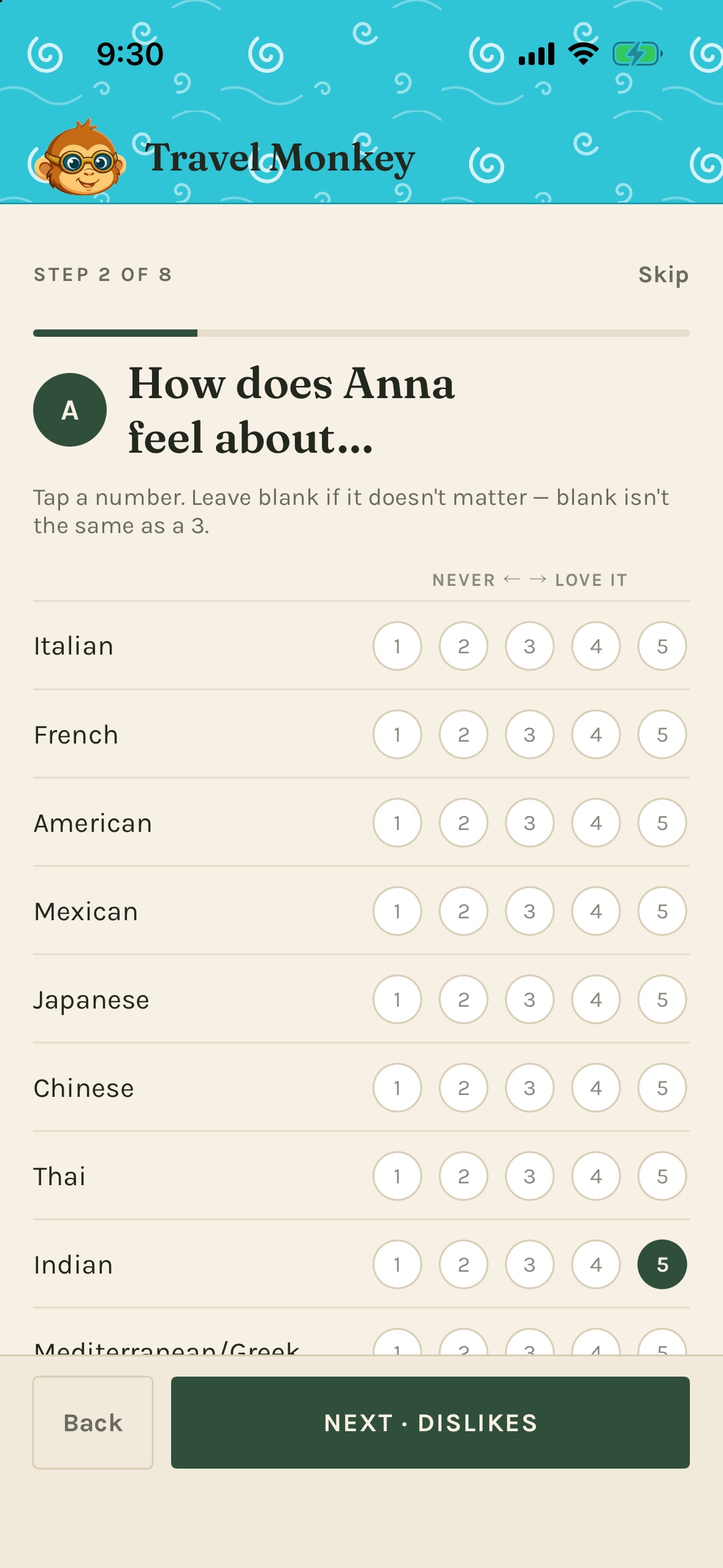
Screenshots use demonstration data. Your travelers and suggestions will differ.
Enter shared logistics such as transport preference, budget, and comfortable walking time. You can skip optional details and edit them later in Profile.
2. Enable the concierge and reminders
During setup:
- Allow location While Using the App for nearby recommendations and travel times.
- Allow notifications if you want leave-by and meal-log reminders.
- Read the personal-information disclosure and tap Allow sharing with Anthropic.
- Paste your Anthropic API key, then finish with Ask me where to eat.
Get a key through the Claude Console, following Anthropic’s key instructions. API usage is billed separately from a Claude chat subscription.
Skipped a step? Open Profile → Settings for the key and Privacy → Allow sharing with Anthropic for sharing, or Change in iOS Settings for phone permissions. The key stays in Keychain. Saving a key does not grant sharing permission. An earlier sharing grant is asked for again after this update because requests can now include shared images and documents.
3. Add a booking or try the sample trip
Your trip: share a confirmation’s text, screenshot, PDF, or Safari page to TravelScout. After Sent to TravelScout, open the app and tap Review on the bookings banner. With a connection, sharing permission, and a key, the app reads waiting bookings when opened, before you choose whether to save.
You can instead tap Add a booking on the no-trip screen, or Trip → Add from text when a trip exists. Paste the details and tap Read it. Check the proposal and its Add to…? or Start a new trip…? question. Yes saves it; No lets you choose another trip or New trip, edit the name, and Save. Add manually works offline. Discard removes a shared booking; Cancel keeps it waiting.
Just exploring: open Profile → Settings → Load sample data. It loads a trip near today and makes it active. If the sample is missing, add your own booking or ask the developer for a build with it.
Open Daily for the day’s plan, Trip → Reservations for bookings, and Concierge for the next deadline and weather. The sample does not move your phone: ask “Suggest lunch near the hotel in the sample trip.” Sample plans can produce real local reminders.
4. Ask, refine, and choose
Open Concierge and ask “Where should we eat?” or tap a suggestion chip. If prompted for sharing, choose Allow and send your question again. Wait for the reply to finish, then use the card controls:
- ⓘ expands extra reasoning when available.
- Not for me lets you explain why the option misses.
- Lock it in records your choice and adds it to today’s active trip.
- Directions appears on the locked card and opens Apple Maps. Long-press it for Google Maps if installed.
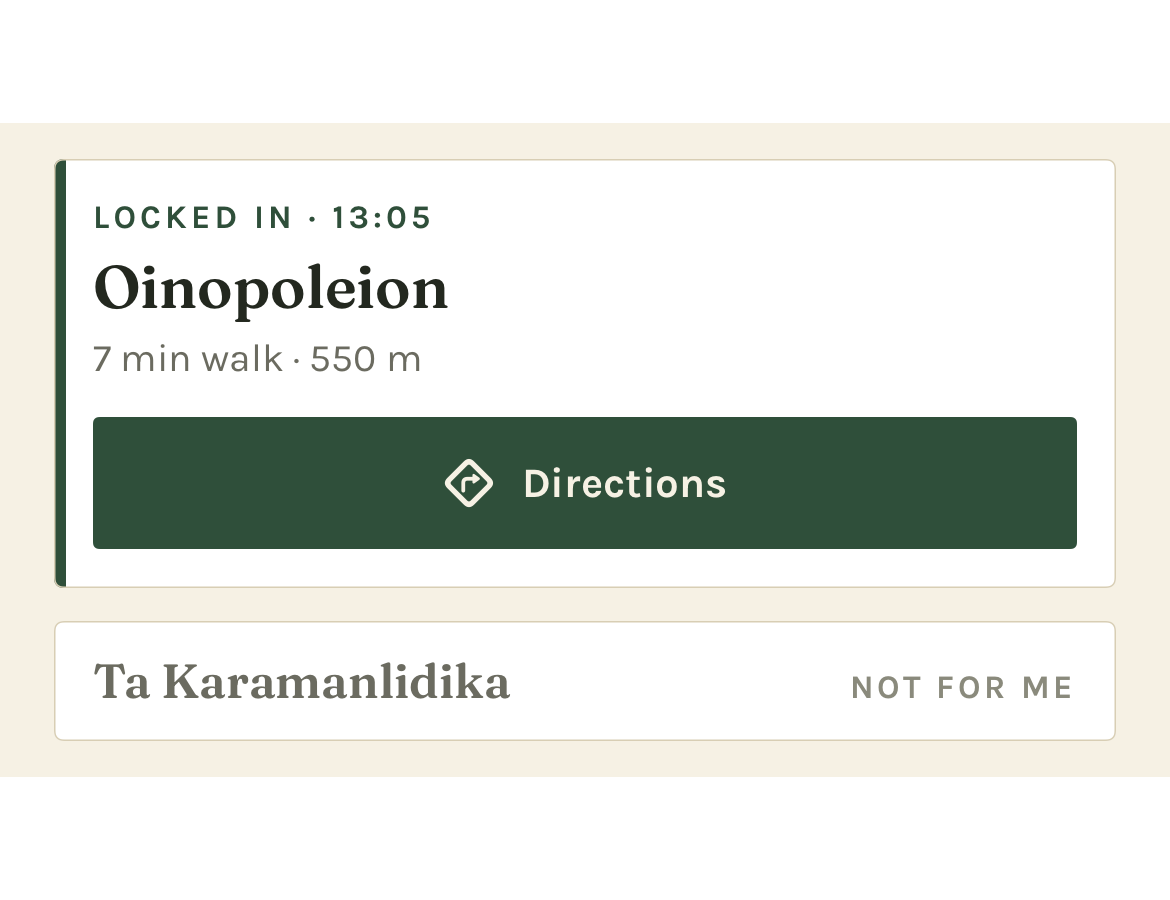
Locking in records a plan; it does not make a booking.
For something easier, tap the Normal pill above the conversation and choose Low-key today. In that same sheet, Who’s out right now selects the people joining this outing. The whole-trip roster lives under Trip → Who’s coming.
5. Leave on time and remember what worked
Check the deadline strip’s Leave by time. With notifications allowed, the app normally reminds you an hour before leave-by and again when it is time to go. These are scheduled phone reminders; the concierge does not monitor travel changes or follow up later on its own.
After a locked-in meal, use Log it when it appears, or the meal reminder. Choose Loved it, Fine, or Not again, add a useful short note, and tap Save to log. Find your entries in Profile → Meal & activity log.
When you finish trying the sample, use Profile → Settings → Remove sample data. This deletes the sample and anything asked or logged on it; your own trips remain.
For the remaining features, see the full user guide. For help, see Support. If something looks wrong, check the key, connection, permissions, and active trip first.